
Below are steps to export a HAR (HTTP Archive) dump from your Chrome or Microsoft Edge Web browser, follow these steps:
Step 1: Open Chrome Web browser and click on three dot menu in top right corner.

Step 2: Click on “More tools“ and select “Developer tools“.
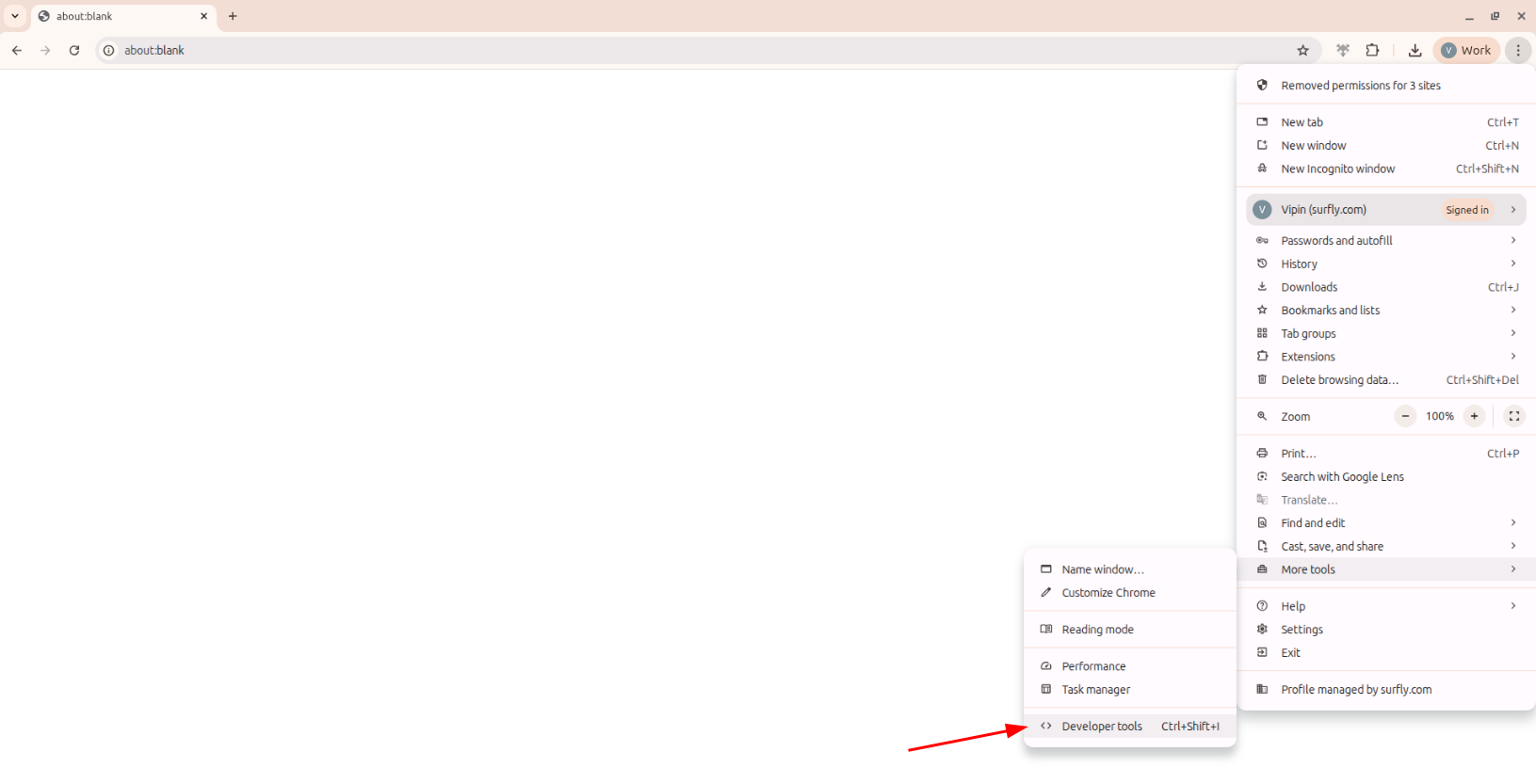
Step 3: Click on “Network“ tab and select check box “Preserve log“ and “Disable cache“.

Step 4: Click on the "Settings" button.

Step 5: Navigate to the Preferences section and scroll down to the Network settings.
Check the box labeled “Allow to generate HAR with sensitive data”.
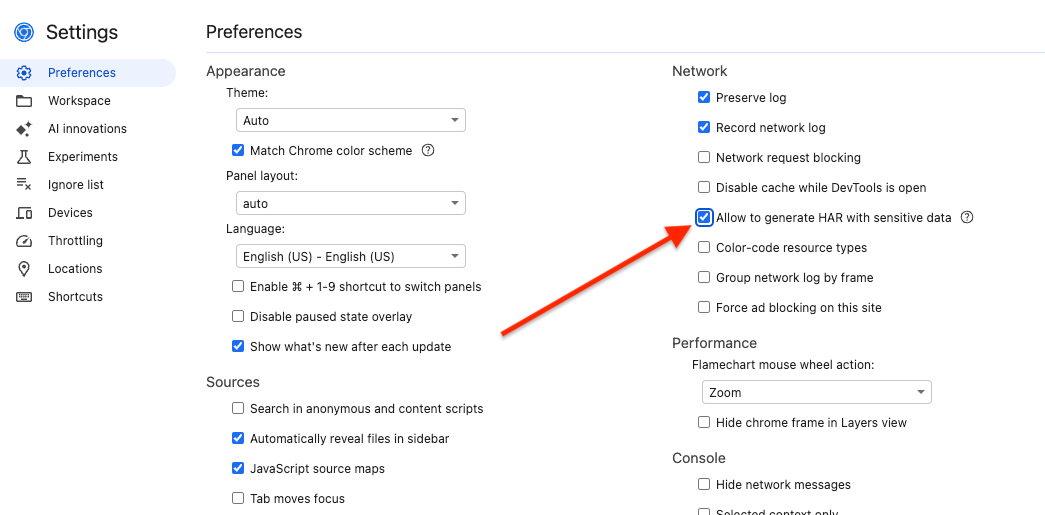
Step 6: Close the Settings panel. Locate the Export HAR button in the Developer Tools. You will now see a small arrow on the button, indicating that the option to export with sensitive data is available.

Step 7: Reproduce the issue inside the Surfly session. After doing so, select the option “Export HAR (with sensitive data)...” to begin exporting an unsanitized HAR file.
Repeat the same steps outside the Surfly session and export another unsanitized HAR file.
Note: By default, Chrome exports a sanitized HAR file. To export an unsanitized file, always long-click the Export button and choose the appropriate option.

Final Step: Once both HAR dumps (from inside and outside the Surfly session) are collected, please forward them to Surfly Support at support@surfly.com.